Film looks for Canons running Magic Lantern.
A custom firmware that turns a Canon that already runs Magic Lantern into a film-style camera. Shoot JPEG as you always do, and every picture is baked in the background with the film look you picked. Your Canon originals are never touched. Built for the EOS 5D Mark III, with test builds for the 6D, EOS M, 700D, 650D, 100D and 70D.
Supported cameras
Each build is made for one Canon model on one Canon firmware version, and needs Magic Lantern already running on that camera.
Canon EOS 5D Mark III
Canon firmware 1.2.3 · Magic Lantern 5D3.123. Run on one camera so far.
Download beta 6 (7 MB)Canon EOS 6D
Canon firmware 1.1.6 · Magic Lantern 6D.116. Not yet run on a real 6D: you may be the first. It has a wheel and a Q button but no joystick, so tell us which buttons do something odd.
Download test build (7 MB)Canon EOS M
Canon firmware 2.0.2 · Magic Lantern EOSM.202. Not yet run on a real EOS M. Everything happens in LiveView: the touch screen, SET, arrows, wheel, PLAY, MENU, INFO and a two-finger touch (Home) drive it.
Download test build (7 MB)Canon EOS 700D (Rebel T5i)
Canon firmware 1.1.5 · Magic Lantern 700D.115. Not yet run on a real 700D: you may be the first. It has a touch screen and a Q button but no joystick, so tell us which buttons do something odd. Boot size is untested on this camera: if it hangs at power on, take the card out and tell us.
Download test build (8 MB)Canon EOS 650D (Rebel T4i)
Canon firmware 1.0.4 · Magic Lantern 650D.104. Not yet run on a real 650D: you may be the first. It has a touch screen and a Q button but no joystick, so tell us which buttons do something odd. Boot size is untested on this camera: if it hangs at power on, take the card out and tell us.
Download test build (8 MB)Canon EOS 100D (Rebel SL1)
Canon firmware 1.0.1 · Magic Lantern 100D.101. Not yet run on a real 100D: you may be the first. It has a touch screen and a Q button but no joystick, so tell us which buttons do something odd. Boot size is untested on this camera: if it hangs at power on, take the card out and tell us.
Download test build (8 MB)Canon EOS 70D
Canon firmware 1.1.2 · Magic Lantern 70D.112. Not yet run on a real 70D: you may be the first. It has a touch screen and a Q button but no joystick, so tell us which buttons do something odd. Boot size is untested on this camera: if it hangs at power on, take the card out and tell us.
Download test build (8 MB)What it does
It runs on top of Magic Lantern and adds a film-camera interface to the camera's screen, with the colour work done after each shot.
Film looks, baked in the background
Each JPEG is run through a 3D colour table and saved as a new file in a PIXELJPG folder. 72 film looks from the M-Film project, plus a Cold Vibes preset.
Originals stay untouched
Your Canon JPEGs in DCIM are only ever read. If a bake fails, you still have the original.
A film-camera interface
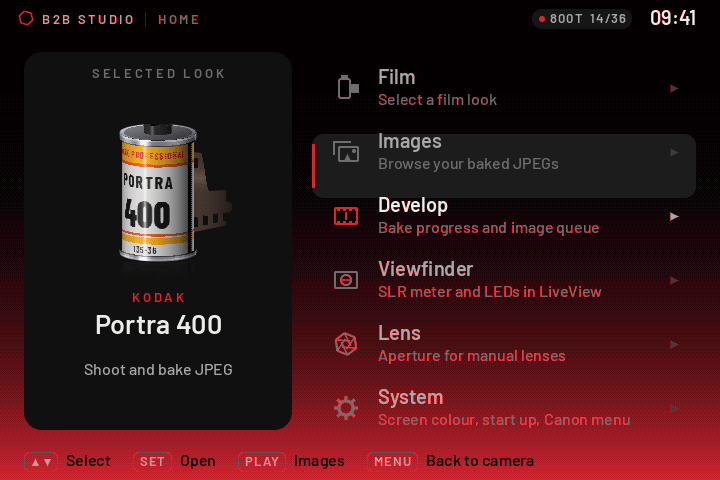
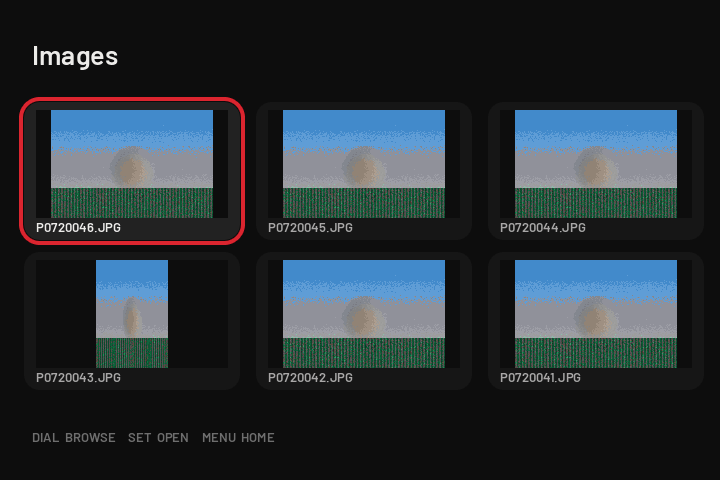
A canister shelf, Home, Images and Develop screens, and a review that fills in as the picture is developed. Portrait pictures can be turned to fill the screen.
Grain and halation
Optional film grain, and a warm halation glow around bright lights, baked into the file.
A shooting screen of its own
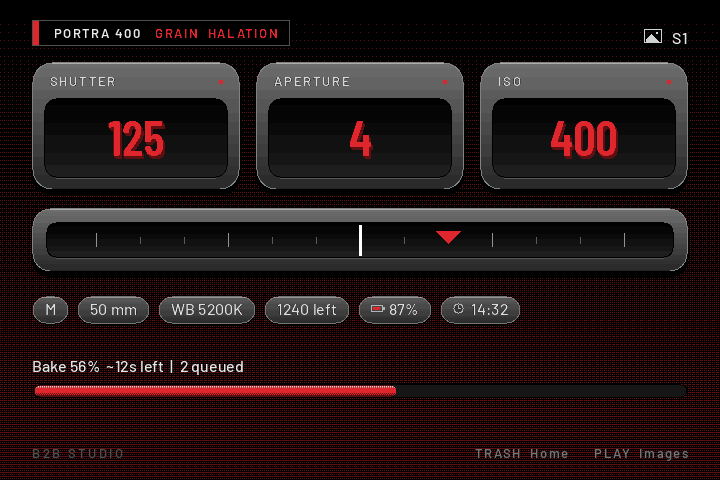
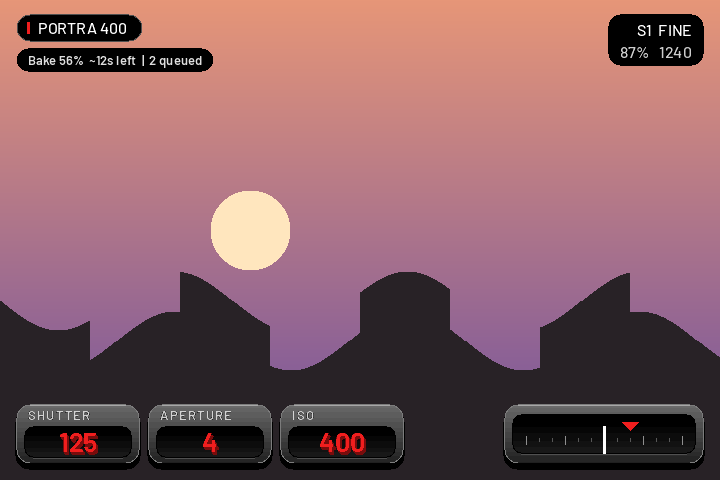
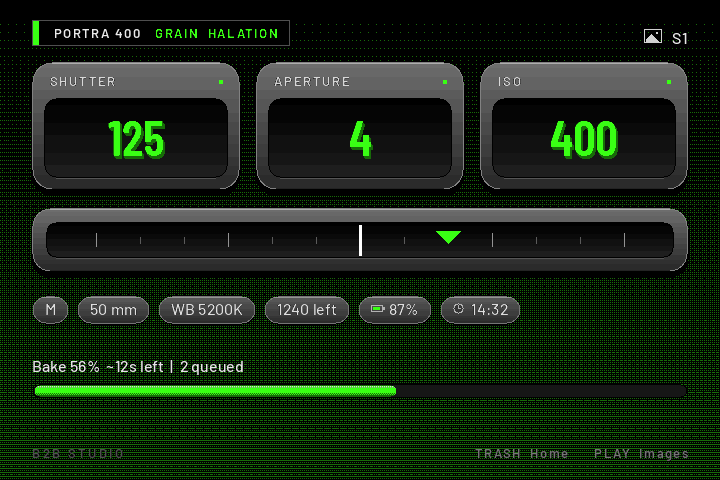
With LiveView off, the screen shows shutter, aperture, ISO, a light meter and the bake queue as raised cards. In LiveView, small cards sit at the edges of the picture. On the 5D Mark III, M-Fn or the button under the lens opens a list of looks. The EOS M works entirely in LiveView.
Make your own looks
The Film Roll Designer turns a Lightroom preset, a .cube LUT or a few sliders into a new film roll for the shelf, with a live preview, and exports the files to copy onto the card. It runs in your browser: nothing is uploaded. Share yours, and add other people's from the look gallery straight to your card.
Three colour themes
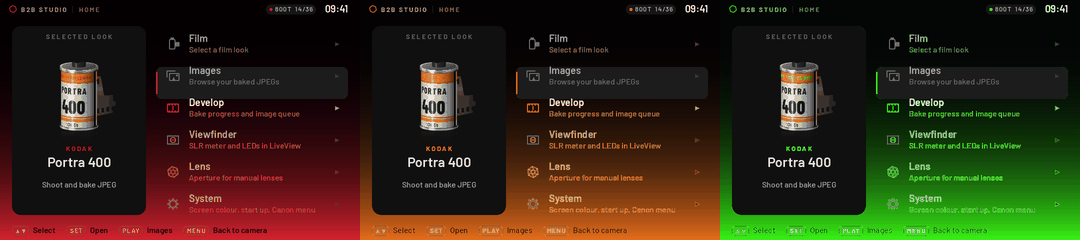
Red, orange or neon green across the menus.
Screens
These are renders of the camera's own screens (720 × 480), not photographs. They show the 5D Mark III; the other cameras use the same interface.
Quick check
Run through this after installing a build. It takes a few minutes. Nothing is sent anywhere: the button only opens a pre-filled report on GitHub, and you decide whether to post it.
What you need
A supported Canon, the matching Canon firmware, and Magic Lantern already running.
A supported camera on the right firmware
EOS 5D Mark III on Canon firmware 1.2.3, EOS 6D on 1.1.6, EOS M on 2.0.2, EOS 700D on 1.1.5, 650D on 1.0.4, 100D on 1.0.1, or 70D on 1.1.2. Other cameras and versions are not supported.
Magic Lantern already installed
The matching build (5D3.123, 6D.116, EOSM.202, 700D.115, 650D.104, 100D.101 or 70D.112) from magiclantern.fm or the magiclantern_simplified project. Check that it starts. These downloads do not install Magic Lantern itself.
A card and a backup
Room for the baked copies, and a backup of the card before you start. Shoot JPEG (Large, Medium or Small).
How to install
About five minutes, if Magic Lantern already runs on your camera. If it does not yet, install it first with the Magic Lantern install guide.
- Install Magic Lantern first (skip this if it already runs)Follow the Magic Lantern install guide for your camera on the Canon firmware listed above, using the matching build (5D3.123, 6D.116 or EOSM.202) from magiclantern_simplified, and check that it starts before you go on.
- Back up your cardCopy everything on it to your computer. To go back later, restore this backup.
- Download the zip for your cameraPick your camera in Supported cameras and unzip the download.
- Copy it to the cardWith the camera off, copy autoexec.bin and the ML folder to the root of the card that already boots Magic Lantern. Replace files that have the same name. Do not run Canon's “Firmware Update” again.
- Switch the camera onOn the 5D Mark III and 6D, the film shelf opens if Start screen is on (Home > System); otherwise press the TRASH button on the shooting screen to open Home. On the EOS M everything happens in LiveView; the film OS opens from there, and a two-finger touch opens Home.
- Pick a look and shootChoose a film under Film, then take pictures as usual. Open Develop to watch the queue and Images (the PLAY button) to see the results.
Good to know
It is a beta, and two builds are tests
The 5D Mark III build has been run on one camera. The 6D, EOS M, 700D, 650D, 100D and 70D builds are test builds that have not been run on a real camera yet. Magic Lantern is not affiliated with Canon, and a bad build can stop the camera from starting with the card in. Back up first and use it at your own risk.
How long does a bake take?
Tens of seconds per picture: the camera's processor is slow. Pictures queue up and are baked one at a time, and a half-press pauses the bake so it never gets in the way of shooting. The review you see after a shot is a quick preview, not the finished file.
How do I report a problem?
Turn on System > Debug log, reproduce it, and attach ML/FILMROLL.LOG from the card to an issue on GitHub.
Does it touch my RAW files or Canon originals?
No. The firmware only reads the JPEG that Canon saved and writes a new, baked copy to PIXELJPG.
How do I remove it?
Restore your card backup, or delete autoexec.bin and the files this zip added. Magic Lantern itself stays as it was.
Checksum
SHA-256 checksums:
B2B-Studio-5D3.123-beta6.zip
6ef6ed52cdf3f9fb811fbccb0cbdf37aa0746d3faa517dfabab70ef93579ce14
B2B-Studio-6D.116-test1.zip
cf1311f247eafb45092cec96bebb9e9c868e3133c364cd12270030b4b0e2d7e6
B2B-Studio-EOSM.202-test1.zip
0ea11a9440d8b4c52f8f46a2130fa5941c50da53f4b3e5552eda1181483a6145
B2B-Studio-700D.115-test1.zip
84da3e928bea3a38f666f211a10526d224138d6c4146916153b2113e675d8ae4
B2B-Studio-650D.104-test1.zip
3eda4f9304be17961d35bcf5ba1c107dae049b6fc59554439784ea7b995ddb64
B2B-Studio-100D.101-test1.zip
7c7541bd144ab1f625e625cad59f860a2d5e3fca21e2873e0bbe5d46bf775644
B2B-Studio-70D.112-test1.zip
1c60afbde8461214d3b200a90b9b08f4f56808841addb2b3b45a70add7f2b740
Credits and licence
B2B Studio is built on M-Film by HNGSeries: the film shelf, Home screen, interface engine and look system are their work, and this firmware would not exist without it. It also builds on Magic Lantern, the film colour tables of Film-Luts by Yahia Angelo (MIT), the JPEG decoder TJpgDec by ChaN, and the Barlow typeface by Jeremy Tribby (SIL Open Font License).
Free software under the GPL-2.0, like M-Film and Magic Lantern. The source and full notices are in the GitHub repository. Film names are descriptive only and are not affiliated with or endorsed by Kodak, Fujifilm, CineStill, Ilford, Agfa or others. “Canon” and “EOS” are trademarks of Canon Inc.; this project is not affiliated with Canon.